Security
Older software eventually stops receiving security fixes. Staying on a supported version can help reduce risk to personal and business data.
Moving from the older version of your computer's operating system to the newer one is easier with a plan. We explain what matters in plain English, help you check readiness, and walk you through a careful, step-by-step move that protects your files and your time.
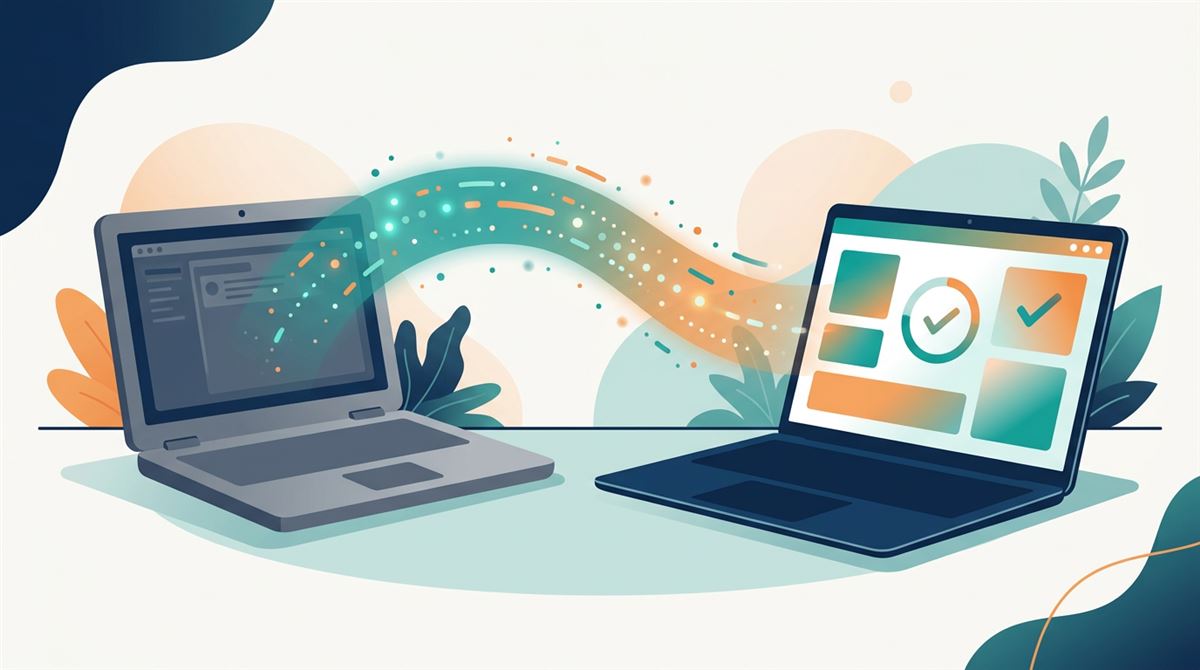
An up-to-date operating system is the foundation everything else on your computer sits on. Here are the four reasons we hear most often.
Older software eventually stops receiving security fixes. Staying on a supported version can help reduce risk to personal and business data.
Current versions are designed to include stability and efficiency improvements, which may mean fewer freezes and smoother everyday use.
New apps, printers, accessories and business tools increasingly target the latest generation, so staying current helps everything keep working together.
Knowing your files are backed up and your system is supported lets you focus on your work and family instead of your computer.
Your printer, webcam, headset and everyday apps are all built with current systems in mind. Keeping the operating system up to date helps your whole desk stay compatible, so a new accessory or an app update is less likely to cause surprises.
Before any move, we suggest listing the devices and programs you rely on and confirming each one. Most move over smoothly; the list simply removes guesswork.
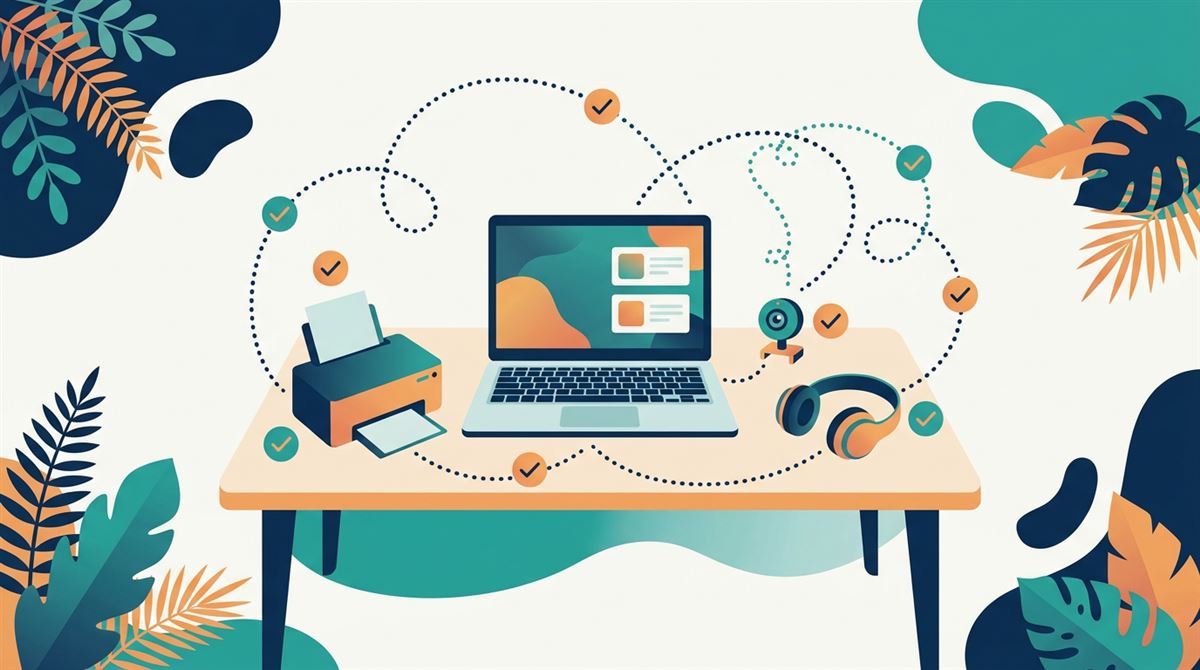
Not every computer can run the newer version of its operating system. Requirements vary, but they generally cover a few areas. Your system settings or the manufacturer's published requirements will tell you the specifics.
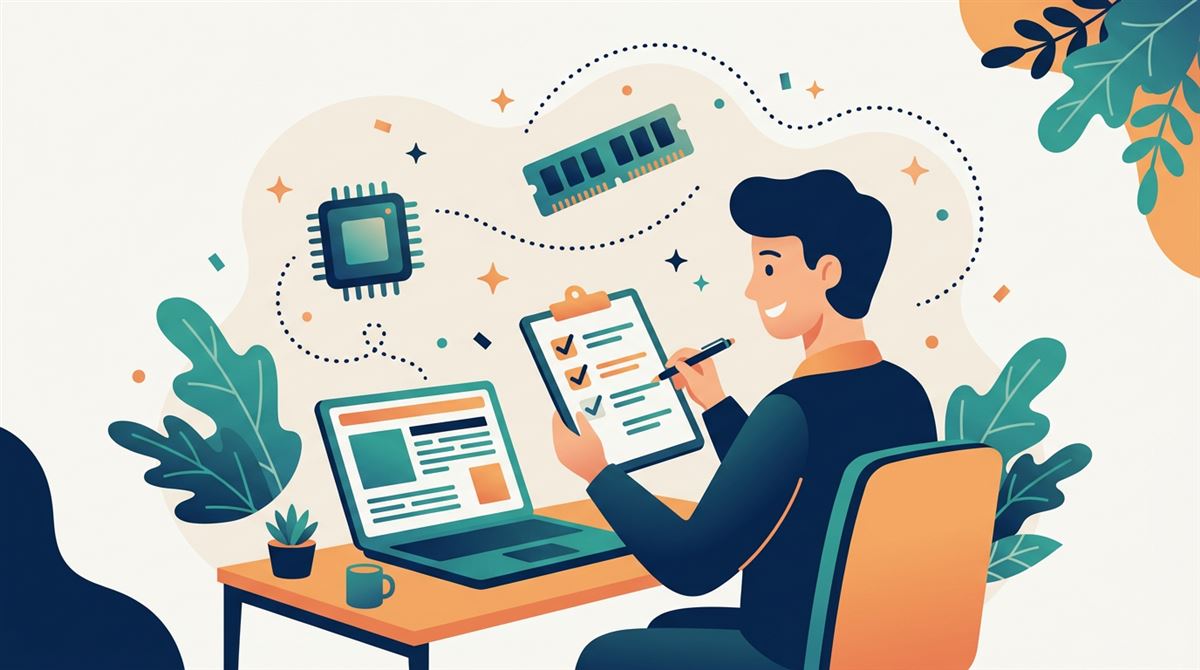
Whether you do it yourself with our guides or ask us for help, the same careful sequence applies.
Check whether your hardware meets the newer version's requirements and note any apps or devices you rely on.
Make at least one complete copy of your files, ideally two, with one kept away from the computer.
Free up space, update apps, confirm accessories are supported and pick a quiet time.
Run the upgrade or set up the new computer, following the steps calmly without rushing.
Open your key files and apps, test your printer, confirm backups still run, and keep recovery options handy.
From a single family computer to a small office, the same careful approach scales to fit. We explain things at your pace and in your terms.

Family computers full of photos, school work and important documents deserve a careful upgrade with a solid backup first.
When your computer is your business, downtime costs money. We help you plan the move around your deadlines.
A few to a few dozen devices? We help you budget, stagger upgrades and document the process for your team.
Stretch limited budgets by deciding which devices to upgrade, which to replace, and how to retire old ones responsibly.
A printable checklist covering hardware, backups, apps, accessories and timing.
Open the guide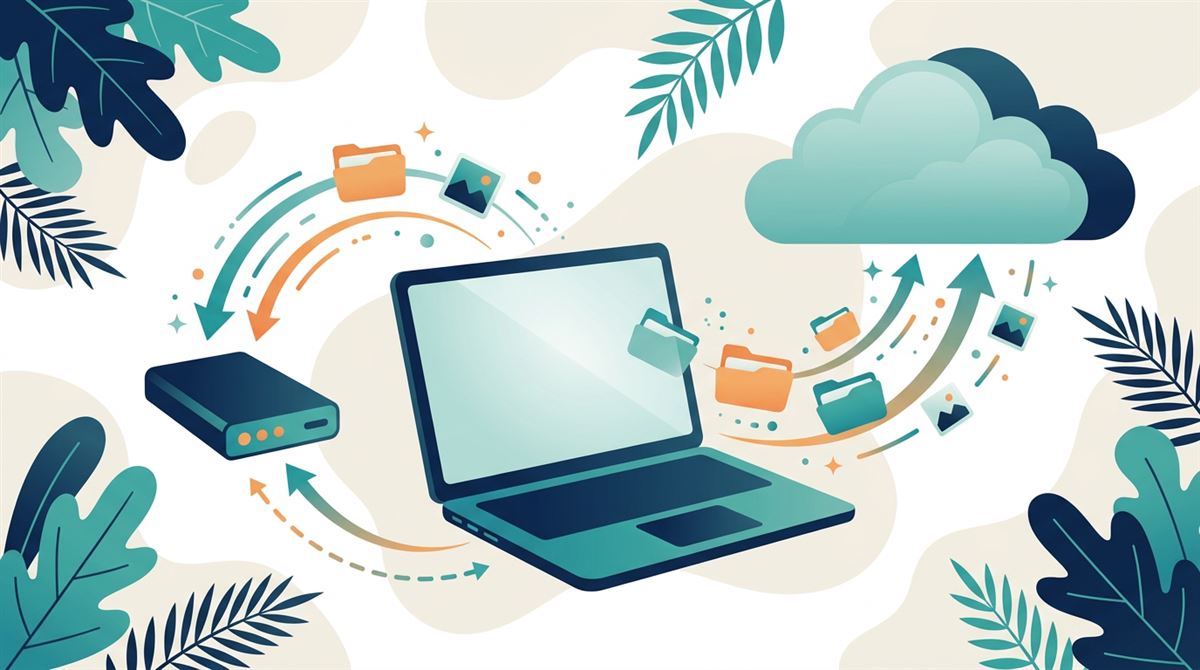
How the 3-2-1 backup approach works and why testing a restore matters.
Learn the basics
Budgeting, phased rollouts, documentation and training for small teams.
Plan your rolloutNo. The goal is to move while your current version still receives security fixes, so you have time to plan instead of rushing. A few weeks of preparation is usually more valuable than an early start.
Upgrades are designed to keep your files, but problems can happen. That is why we always recommend a complete, tested backup before you begin.
Compare your computer's processor, memory, storage and firmware security settings against the published requirements for the newer version. Our readiness guide walks through each item.
You can keep using it carefully while planning a replacement, and then retire it responsibly. We discuss the options on our why updates matter page.
No. We are an independent company and are not affiliated with, endorsed by, or sponsored by any operating system, software or hardware manufacturer.
Never through this website. We do not need your passwords and we do not offer remote-access tools or downloads.
Our guides are free to read. Consultation is optional and paid. Pricing is provided before any paid service begins, and you decide whether to go ahead.

Request our readiness checklist or ask a question. We reply by email during business hours, Monday through Friday, 9:00 AM to 5:00 PM Eastern Time.
Call: +1 (877) 306-4666
Email: info@nextversionready.it.com
Address: 110 Poplar St, Wilmington, DE 19801, United States