Planning an Operating System Upgrade for Your Small Business
Moving a team of computers to the newer version works best as a small, well-organized project. This guide covers budgeting, phased rollout, documentation, training and the policies that keep things tidy afterward.

Start with an inventory
Before any budget conversation, list every computer the business uses, including laptops that travel and the computer at the front desk nobody thinks about. For each device, note who uses it, its age, whether it meets the newer version's requirements, and which business apps it runs. A simple spreadsheet is enough.
| Device | Main user | Meets requirements? | Plan |
|---|---|---|---|
| Front desk desktop | Reception | Yes | Upgrade in phase 1 |
| Office manager laptop | Office manager | Yes | Upgrade in phase 2 |
| Shared workstation | Team | No | Replace next budget cycle |
Budget planning
Your inventory naturally sorts devices into three groups: those that can upgrade, those that need replacing, and those that can be retired without replacement. That gives you a realistic picture of costs. Consider:
- Replacement hardware for computers that do not qualify.
- Software updates if any business apps need a newer release to run on the newer version.
- Staff time for backups, testing and the upgrade day itself.
- Accessories such as a printer that will not have drivers for the newer version.
- Outside help, if you choose it, for planning or consultation.
Spreading replacements across more than one budget period is often easier on cash flow, as long as you plan well before support for the older version ends.
A phased rollout
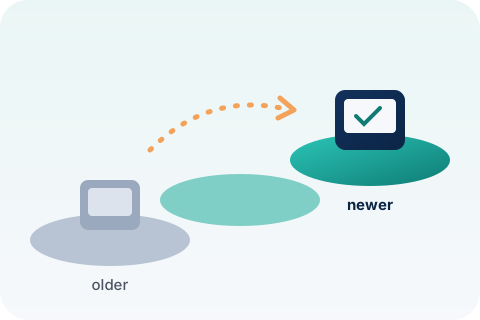
- Pilot. Upgrade one or two computers belonging to people comfortable with change. Use them for a week or two and note anything that behaves differently.
- Fix and adjust. Resolve issues found in the pilot, update your checklist and confirm every business app works.
- Small groups. Upgrade the rest in groups small enough that the business keeps running normally.
- Wrap-up. Retire old devices responsibly and update your records.
Avoid upgrading every computer on the same day. If something unexpected comes up, you want most of the team still working.
Documentation
Good notes turn a one-time project into a repeatable process. Keep a short record of:
- Each device's status, upgrade date and who performed it.
- Any setting that had to be changed, such as turning on a firmware security feature.
- Problems encountered and how they were solved.
- Where backups are stored and how to restore from them.
Store this documentation where more than one person can reach it, so it is available even if the person who led the project is out.
Employee training

Most people adjust quickly, but a short orientation prevents a stream of small questions. A 20-minute session can cover where common settings moved, how to find files, how to print, and who to ask for help. A one-page handout with screenshots of your own setup (taken after upgrading) works well.
Also use the opportunity to remind everyone of good security habits: legitimate companies do not call or show pop-ups demanding remote access or payment to "fix" a computer.
Policies that keep you current

- Update policy: decide how quickly routine updates are installed, and who checks that they have been.
- Backup policy: define what is backed up, how often, and how restores are tested.
- Hardware lifecycle: set a typical replacement window so old devices do not quietly fall behind.
- Disposal policy: describe how data is erased and where retired devices go.
- Access policy: state that nobody shares passwords or grants remote access to unsolicited callers.
Talk through your plan
We offer general consultation for small offices and nonprofits planning a move. Pricing is provided before any paid service begins, and we will never ask for your passwords or remote access.